
Roblox Shaders: How to Get Better Graphics, Realistic Lighting and Smooth Gameplay in 2026
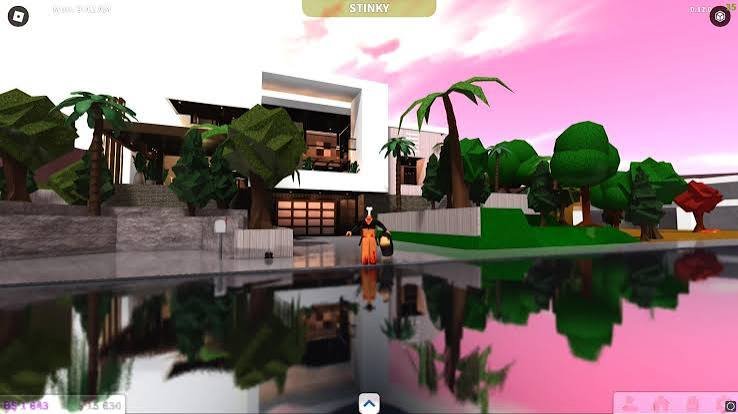
Roblox has millions of players, but not every experience looks the same. Some games feature realistic lighting, detailed shadows, beautiful reflections, and cinematic environments, while others have simple graphics. This difference often makes players search for Roblox shaders.
Shaders can change the way a game looks by improving colors, lighting, contrast, shadows, and other visual effects. They can make screenshots more attractive and certain environments feel more realistic.
However, there is an important distinction between Roblox’s built-in graphics settings and third-party shader programs. Not every shader tool is safe, compatible, or officially supported.
This guide explains what Roblox shaders are, how they work, how to improve graphics safely, what to know before installing third-party software, and how to get better visuals without sacrificing performance.
What Are Roblox Shaders?
Roblox shaders are visual effects or graphics enhancements that change how a Roblox experience appears on the screen.
They can improve the appearance of different visual elements, including:
- Lighting and brightness
- Shadows and contrast
- Color saturation
- Reflections and visual depth
- Bloom and glow effects
- Environmental atmosphere
- Overall image quality
The word shader can describe different technologies. In Roblox discussions, players often use it to refer to third-party post-processing presets, such as those designed for ReShade.
These presets can apply visual effects after a game has been rendered. The result may look warmer, darker, brighter, more colorful, or more cinematic.
It is important to understand that third-party shaders do not automatically improve the underlying textures, models, or gameplay. They primarily change the appearance of the rendered image.
How Do Roblox Shaders Work?
A shader is a program that helps determine how visual elements are displayed. Depending on the technology, it can influence colors, lighting calculations, surface appearance, and other rendering effects.
In the context of Roblox, there are two main approaches to better graphics.
1. Built-In Roblox Graphics
Roblox includes graphics settings that players can adjust directly inside an experience.
The graphics quality setting controls aspects such as rendering distance, shading quality, texture resolution, particle effects, and post-processing quality.
Higher settings can make supported experiences look better, although the final result depends on the game and the device.
2. Third-Party Post-Processing
Some external programs apply visual filters and effects to the image produced by a game.
ReShade is a well-known example of post-processing software. Depending on compatibility, presets may add effects such as:
- Ambient occlusion
- Color correction
- Sharpening
- Bloom
- Depth-based effects
- Screen-space reflections
These tools are not official Roblox features. Their compatibility and safety should be checked carefully before use.
Main Benefits of Roblox Shaders
The biggest reason players search for visual enhancements is to make their favorite experiences more attractive.
Here are some potential benefits.
Better Lighting and Shadows
Lighting can completely change the appearance of a virtual environment. Better contrast and shadow effects can make buildings, characters, roads, and landscapes look more detailed.
A nighttime city, for example, may look more atmospheric with carefully adjusted brightness and contrast.
More Attractive Colors
Color correction can make a game appear warmer, cooler, brighter, or more cinematic.
Players who create Roblox screenshots may prefer vibrant colors, while others might choose softer tones for a natural appearance.
Improved Screenshots
Visual effects can help content creators produce more appealing screenshots and video backgrounds.
This can be useful for:
- Roblox YouTube videos
- Gaming thumbnails
- Social media posts
- Character photography
- Game showcases
A More Immersive Environment
Visual atmosphere can influence how players experience a game.
A horror experience may benefit from darker visuals and stronger contrast, while an adventure game may look more appealing with brighter colors and natural-looking lighting.
However, stronger effects are not always better. Excessive bloom, darkness, or sharpening can make important objects difficult to see.
How to Improve Roblox Graphics Without Third-Party Shaders
For most players, the safest starting point is Roblox’s official graphics menu. You do not need to download an external shader installer to increase the game’s built-in graphics quality.
Follow these steps:
Step 1: Open Roblox
Launch the official Roblox application and enter your preferred experience.
Step 2: Open the Settings Menu
Press the Esc key on your keyboard or click the Roblox icon in the upper-left corner.
Select the Settings tab.
Step 3: Change Graphics Mode
Find the Graphics Mode option.
Change it from Automatic to Manual if you want direct control over graphics quality.
Step 4: Increase Graphics Quality
Move the Graphics Quality slider towards the right.
Higher settings generally improve visual quality, but they also require more processing power.
Step 5: Test Your Performance
Return to the experience and check whether the game runs smoothly.
If you notice stuttering, overheating, or unusually low frame rates, reduce the graphics setting.
Important: Roblox’s built-in graphics settings are different from third-party shader presets. Increasing graphics quality does not install additional shader software.
Roblox Shaders for Different Devices
Not every device can handle the same visual settings. Your processor, graphics hardware, available memory, and display resolution can affect performance.
Roblox Shaders on Windows PC
Desktop computers and gaming laptops generally provide more flexibility for graphics adjustments.
Players with dedicated graphics cards may be able to handle higher graphics settings more comfortably than users with entry-level hardware.
Before considering external software, try the built-in graphics slider and check your system performance.
Roblox Shaders on Mac
Mac users can improve Roblox graphics through the available in-game settings.
However, compatibility with third-party graphics software depends on the application, operating system, and rendering technology. A Windows shader tutorial should not automatically be assumed to work on macOS.
Roblox Shaders on Android
Android players should be careful with websites advertising mobile shader APK files.
Roblox’s official graphics settings are the recommended starting point. Avoid installing modified applications or unknown APKs that request unnecessary permissions.
Roblox Shaders on iPhone and iPad
iOS users should also rely on the official Roblox application and its supported settings.
External PC shader installers are not designed to work as ordinary iPhone or iPad applications.
Roblox Shaders Comparison: Built-In Settings vs Third-Party Tools
Understanding the differences can help you choose the right approach.
| Feature | Built-In Graphics | Third-Party Shaders |
|---|---|---|
| Official Roblox setting | Yes | No |
| Easy to adjust | Yes | Depends on software |
| Better visual quality | Yes, within game limits | Depends on effects |
| Additional downloads | No | Usually required |
| Performance impact | Depends on quality | Can be significant |
| Mobile support | Supported settings vary by device | Often limited |
| Security considerations | Official client settings | Requires extra caution |
For everyday gameplay, built-in graphics settings are the better starting point. Third-party software introduces additional compatibility and security considerations.
Are Roblox Shaders Safe to Download?
This is one of the most important questions players should ask before installing anything.
Not every website advertising free Roblox shaders is trustworthy. Some downloads may be outdated, misleading, bundled with unwanted programs, or potentially harmful.
A graphics preset and an executable installer are also two different things. A preset contains visual configuration, while an installer can make changes to your computer.
Before downloading any external graphics software, consider these precautions:
- Check the developer’s official website.
- Avoid shortened or suspicious download links.
- Do not disable Windows Defender or antivirus protection to install a shader.
- Avoid files that request your Roblox password or account credentials.
- Do not download modified Roblox clients from unknown websites.
- Check whether the software is compatible with your current Roblox version.
- Remove unfamiliar programs if you notice unexpected behavior.
Be especially cautious of websites promising unlimited FPS, free Robux, realistic graphics with one click, or guaranteed account protection.
No third-party shader installer should require your Roblox password.
Can Roblox Shaders Get Your Account Banned?
There is no universal guarantee that every third-party shader tool is permitted or safe to use.
Roblox’s official client and platform rules should be your reference point. External programs that modify the client, inject code, or interfere with its operation can create account and security risks.
A visual preset is not necessarily the same thing as an exploit, but the method used to apply it matters.
Before using any external program, check Roblox’s current Community Standards and Terms of Use. Also consider that individual experiences may use additional security systems.
The safest option is to use Roblox’s supported graphics settings rather than modifying the game client.
How to Fix Roblox Lag After Increasing Graphics
Higher graphics quality can make a game look better, but it can also increase hardware demands.
If Roblox begins lagging after you adjust graphics settings, try these practical solutions.
Lower Graphics Quality
Open Settings and reduce the graphics slider gradually until the game runs smoothly.
Close Background Applications
Web browsers, video editors, recording software, and other demanding programs can compete for system resources.
Close applications you do not need while playing.
Update Graphics Drivers
On Windows, check your graphics card manufacturer’s official website for compatible driver updates.
Avoid downloading drivers from unknown websites.
Check Your Internet Connection
Not all Roblox lag is caused by graphics.
Network problems can cause delayed movement, slow responses, and players appearing to teleport. A graphics adjustment will not fix an unstable internet connection.
Monitor Device Temperature
Long gaming sessions and demanding visual settings can increase device temperature.
Keep your laptop or desktop properly ventilated. If performance drops as the device heats up, allow it to cool.
How Roblox Developers Can Create Better Visual Effects
Players are not the only people interested in Roblox graphics. Developers can also improve the appearance of their experiences through Roblox Studio.
Roblox Studio provides supported lighting and post-processing features that can help creators design attractive environments.
Lighting Technology
Developers can configure lighting properties to create different environments, from bright daytime scenes to atmospheric nighttime settings.
BloomEffect
BloomEffect creates a glow around bright areas of an image.
It can be useful for neon signs, magical objects, glowing decorations, and futuristic environments.
ColorCorrectionEffect
ColorCorrectionEffect allows creators to adjust properties such as brightness, contrast, and saturation.
This can help establish a consistent visual style throughout an experience.
DepthOfFieldEffect
DepthOfFieldEffect creates a camera effect that makes selected areas appear sharper while other areas become blurred.
It can be useful for cinematic scenes and presentation-focused environments.
SunRaysEffect
SunRaysEffect adds visible light-ray effects that can make outdoor environments feel more atmospheric.
These effects should be used carefully. Too many visual effects can reduce performance, especially on lower-powered devices.
Best Tips for Getting Better Roblox Graphics
You do not need the strongest computer to improve the appearance of every Roblox experience.
Try these practical recommendations:
- Use Manual graphics mode when you want direct control.
- Increase graphics quality gradually.
- Choose experiences with well-designed lighting.
- Avoid excessive brightness and visual filters.
- Keep your Roblox application updated.
- Use official software sources.
- Check frame rate before and after making changes.
- Prioritize smooth gameplay over unnecessary visual effects.
The best graphics setup is one that looks good and remains comfortable to play.
Common Mistakes to Avoid When Using Roblox Shaders
Many players make mistakes when trying to improve their graphics.
Downloading from random websites: Unknown installers can contain harmful files or unwanted software.
Ignoring compatibility: A shader designed for another rendering environment may not work correctly with Roblox.
Using maximum graphics on every device: High settings can cause stuttering on less powerful hardware.
Installing multiple visual tools: Several programs attempting to change the same rendering process may create conflicts.
Expecting every Roblox game to look identical: Each experience has its own models, textures, lighting, and visual design.
Avoiding these mistakes can save time and help protect your device.
Frequently Asked Questions About Roblox Shaders
1. What are Roblox shaders?
Roblox shaders are graphics enhancements that change how Roblox experiences look. They may improve colors, lighting, contrast, shadows, and other visual effects.
2. Are Roblox shaders free?
Some third-party shader presets and graphics tools are offered for free. However, players should check the developer, download source, compatibility, and safety before installing anything.
3. How do I get better graphics in Roblox?
Open an experience, press Esc, select Settings, change Graphics Mode to Manual, and move the Graphics Quality slider towards the right.
4. Can I use Roblox shaders on mobile?
Mobile users can adjust supported Roblox graphics settings, but many third-party PC shader programs are not designed for Android or iOS.
5. Do Roblox shaders reduce FPS?
They can. Additional post-processing effects may require more GPU resources and reduce frame rates, particularly on entry-level computers.
6. Are Roblox shaders allowed?
Official Roblox graphics settings are supported. Third-party tools must be evaluated individually, especially if they modify the client, inject code, or interfere with Roblox.
7. Do Roblox shaders work on every game?
No. The results depend on the rendering method, the software’s compatibility, the experience, and the device.
8. What is ReShade for Roblox?
ReShade is a third-party post-processing tool that can apply visual filters and effects to compatible applications. It is not an official Roblox feature.
9. Can Roblox shaders improve screenshots?
Visual enhancements can make screenshots more colorful, atmospheric, and cinematic. However, the results depend on the chosen effects and the original game’s graphics.
10. What is the safest way to improve Roblox graphics?
Use the official Roblox application, adjust its built-in graphics quality, keep your device updated, and avoid unknown shader installers or modified clients.
Conclusion
Roblox shaders attract players who want better lighting, richer colors, realistic-looking environments, and more attractive screenshots. They can offer interesting visual possibilities, but not every external graphics tool is safe or compatible.
For most players, the best starting point is Roblox’s built-in graphics quality setting. Developers can go further by using supported lighting and post-processing effects in Roblox Studio.
Always balance visual quality with performance and prioritize trusted software sources.
Whether you play Roblox casually, create gaming content, or develop your own experiences, understanding graphics settings and shader technology can help you make better decisions and enjoy a more visually appealing experience.

One Comment