Embarqmail Login: How to Access Your Email Account in 2026
Embarqmail-login If you are looking for the Embarqmail login page, you probably want to check an existing email account, read important messages, or resolve a sign-in problem. The good news is that Embarqmail addresses are included in CenturyLink’s legacy email service.
You can access your existing @embarqmail.com account through the CenturyLink email sign-in service. You do not necessarily need to create a new email address or abandon your old inbox.
This guide explains how to sign in, what to do if your password stops working, how to access messages from a mobile device, and which server settings to use. It also covers practical security measures to help protect your account.
What Is Embarqmail?
Embarqmail is an older email service associated with Embarq, a telecommunications company that became part of CenturyLink.
Over time, the company and its email services went through several changes. CenturyLink continued supporting a number of legacy email domains, including embarqmail.com.
This means existing users may still have email addresses ending in @embarqmail.com.
For example:
-
johnsmith@embarqmail.com
-
sarah123@embarqmail.com
-
exampleuser@embarqmail.com
These addresses can use CenturyLink’s published email server settings.
Important: Embarqmail is a legacy email domain. Users should follow CenturyLink’s current sign-in and support instructions rather than relying on outdated Embarq login pages.
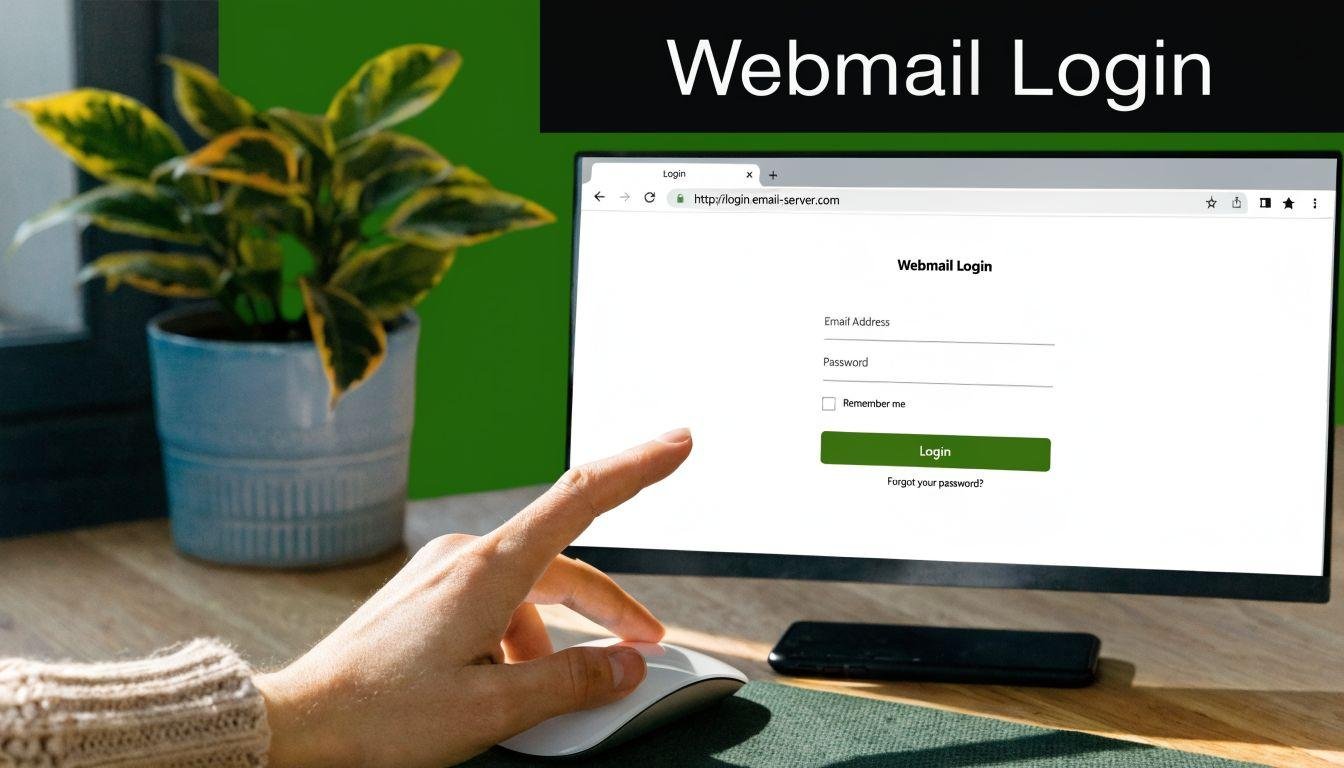
How to Complete the Embarqmail Login Process
Accessing your existing mailbox is straightforward if you have your email address and password.
Step 1: Visit the Official CenturyLink Website
Open your preferred browser, such as Google Chrome, Microsoft Edge, Firefox, or Safari.
Visit the official website:
This is the provider’s webmail access point.
Step 2: Enter Your Embarqmail Email Address
On the sign-in page, enter your complete email address.
For example:
yourname@embarqmail.com
Check the spelling carefully. Leaving out the domain or entering an incorrect character may prevent successful authentication.
Step 3: Enter Your Password
Type the password associated with your existing email account.
Remember that passwords are case-sensitive. Check whether Caps Lock is enabled and make sure there are no accidental spaces.
Step 4: Select the Sign-In Option
Continue using the sign-in button displayed on the website.
If your credentials are correct and your account is active, you should be able to access your mailbox.
Step 5: Check Your Inbox
After signing in, review your inbox, folders, and recent messages.
If you are using a shared or public computer, sign out when finished. Avoid saving your password on devices that other people can access.
Is Embarqmail Still Working in 2026?
Yes, CenturyLink’s published email documentation still lists embarqmail.com among the legacy domains supported by its email server settings.
However, this does not guarantee that every old account remains active.
Accounts that have not been accessed for a year are subject to deactivation and deletion of their contents, according to CenturyLink’s email guidance.
If you have an older Embarqmail address, try signing in through the official website. If you receive an error, use the provider’s account recovery or support process.
Benefits of Using an Existing Embarqmail Account
Keeping your original email address can be useful, particularly if you have used it for years.
Some important benefits include:
1. Keep Your Established Email Address
You may have registered your original address with banks, shopping websites, social media platforms, and professional services.
Continuing to use the same address can help you maintain access to those communications.
2. Access Older Email Conversations
Your existing mailbox may contain important personal messages, documents, receipts, and attachments.
If the account is still active and its messages are available, you can continue accessing them through the supported email service.
3. Use Multiple Devices
CenturyLink supports connecting compatible email accounts to applications such as Outlook and Apple Mail.
With IMAP configuration, you can synchronize messages across supported devices.
4. Maintain Personal and Professional Communication
An established email address can remain useful for personal correspondence, account notifications, and other communications.
However, it is important to keep your recovery information and password updated.
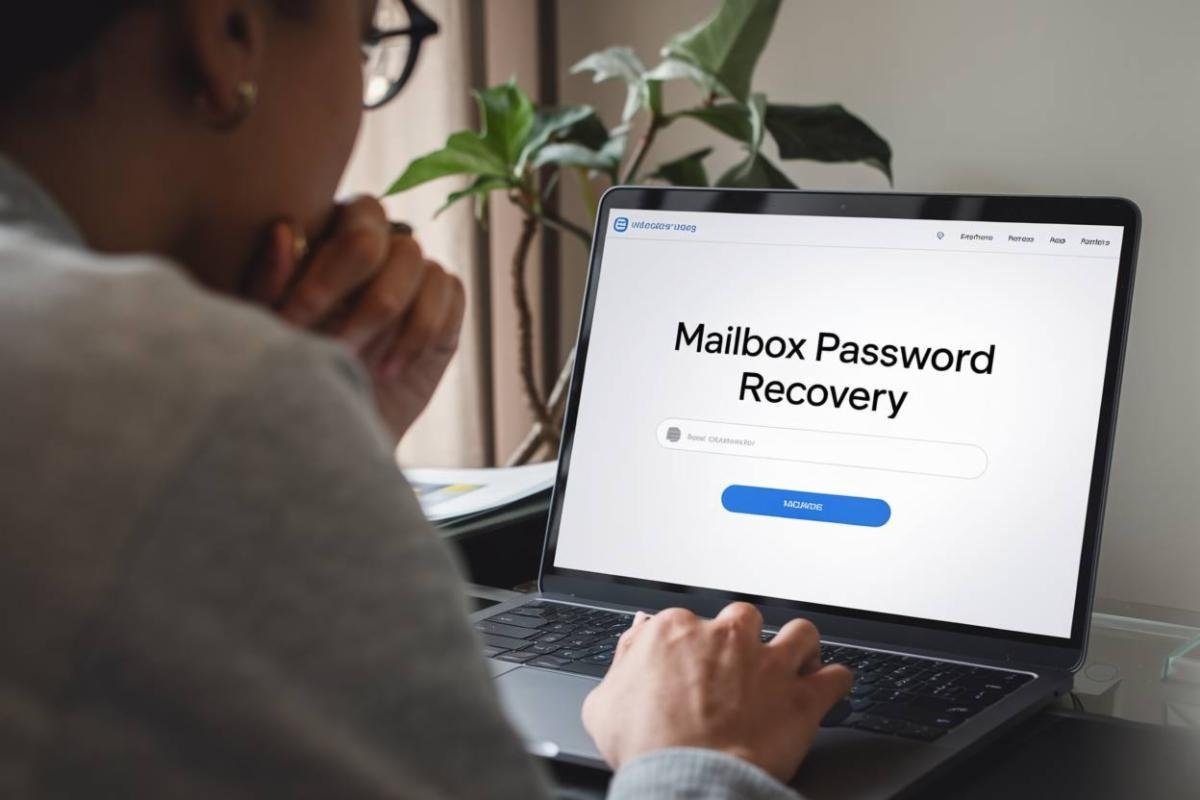
How to Recover a Forgotten Embarqmail Password
Forgetting an old email password can be frustrating, especially when you need access to an important message.
If you cannot complete the Embarqmail login process, try the following steps.
Step 1: Open the Official Email Website
Visit the CenturyLink sign-in page:
CenturyLink Official Email Website
Step 2: Look for Password Recovery
Find the password recovery or forgot-password option available on the sign-in page.
Follow the instructions provided by the service.
Step 3: Verify Your Identity
Depending on the recovery options previously configured, you may need to verify your identity using an available recovery method.
This could involve a registered phone number or an alternative email address.
Step 4: Create a New Password
If the provider allows you to reset your password, choose a strong and unique password.
Avoid using your birthday, name, telephone number, or an easily guessed combination.
Step 5: Try Signing In Again
Return to the email sign-in page and enter your account details using the updated password.
If automated recovery is unavailable, contact CenturyLink email support.
Security advice: Never share your password or verification code with someone claiming to provide unofficial Embarqmail recovery services.
How to Set Up Embarqmail on Outlook, iPhone, and Android
You do not have to access your mailbox through a browser every time. You can also configure a compatible email application.
CenturyLink publishes server settings for Embarqmail and other supported legacy domains.
Embarqmail IMAP and SMTP Settings
Use the following settings when manually configuring your account.
| Setting | Configuration |
|---|---|
| Account username | Full Embarqmail address |
| Password | Your email password |
| Incoming server (IMAP) | mail.centurylink.net |
| IMAP port | 993 |
| IMAP security | SSL |
| Incoming server (POP) | pop.centurylink.net |
| POP port | 995 |
| POP security | SSL |
| Outgoing server (SMTP) | smtp.centurylink.net |
| SMTP port | 587 |
| SMTP security | TLS if available |
CenturyLink+1
Why Is IMAP Recommended?
IMAP allows your email application to synchronize messages with the mail server.
For example, if you read an email on your phone, the message status can also update when you open the same account on your computer.
POP works differently. It is primarily designed to download messages to an individual device.
For people who regularly use multiple devices, IMAP is generally the more convenient option.
Setting Up Embarqmail in Microsoft Outlook
Follow these general steps:
-
Open Microsoft Outlook.
-
Go to Account Settings or Add Account.
-
Enter your complete Embarqmail address.
-
Select manual configuration if automatic setup fails.
-
Choose IMAP as the incoming account type.
-
Enter the incoming and outgoing server information from the table above.
-
Enter your email password.
-
Save the settings and test the connection.
The exact menu names may vary between Outlook versions.
Setting Up Embarqmail on an iPhone
You can add a compatible email account through the iPhone settings.
-
Open Settings.
-
Select Apps and then Mail, or Mail directly on older iOS versions.
-
Open Mail Accounts.
-
Select Add Account.
-
Choose Other.
-
Select Add Mail Account.
-
Enter your name, Embarqmail address, password, and description.
-
Select IMAP and enter the server details.
-
Save the account.
CenturyLink also provides an official iPhone email setup guide.
Setting Up Embarqmail on Android
Android menu options vary by manufacturer and email application.
Generally:
-
Open your preferred email application.
-
Select Add Account.
-
Choose Other or Personal IMAP.
-
Enter your complete email address.
-
Select IMAP.
-
Enter the incoming server information.
-
Configure the outgoing SMTP server.
-
Complete the setup and test your inbox.
Make sure the application uses the correct security settings.
Common Embarqmail Login Problems and Their Solutions
Sometimes the Embarqmail login page may not work as expected. The problem could be related to incorrect credentials, an inactive account, browser settings, or a connection issue.
Here are some common problems and practical solutions.
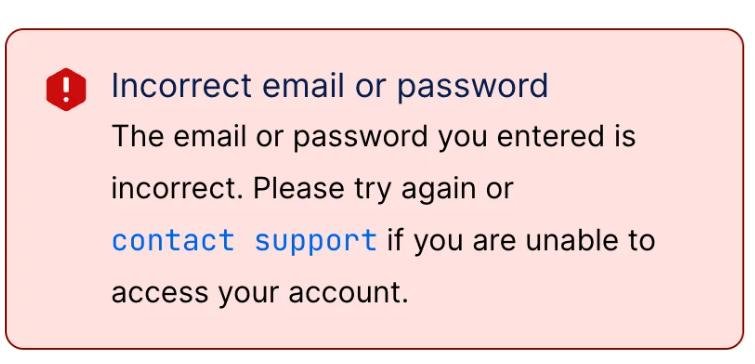
1. Incorrect Email Address or Password
One of the most common login problems is entering incorrect account information.
Possible solutions:
-
Check the spelling of your complete email address.
-
Make sure you are using the correct password.
-
Check Caps Lock.
-
Remove accidental spaces.
-
Try typing the password manually instead of using autofill.
2. Embarqmail Login Page Not Loading
If the website does not open, first check your internet connection.
You can also:
-
Refresh the browser.
-
Open the website in another browser.
-
Clear browser cache and cookies.
-
Temporarily disable problematic browser extensions.
-
Restart your internet connection.
If the service is experiencing an outage, you may need to wait until access is restored.
3. Account Temporarily Locked
Repeated unsuccessful sign-in attempts can trigger security protections.
If you suspect your account has been locked, stop repeatedly entering passwords.
Use the provider’s official recovery instructions or contact customer support.
4. Emails Not Appearing in the Inbox
If you can sign in but cannot find expected messages, check:
-
Spam or junk folders.
-
Deleted messages.
-
Other inbox categories.
-
Email filters and forwarding rules.
-
Available mailbox storage.
Also confirm that the sender used the correct email address.
5. Outlook or Mobile Email Application Not Connecting
If your mailbox works in the browser but not in Outlook or another application, the problem may be caused by outdated server settings.
Check the following:
-
IMAP server: mail.centurylink.net
-
IMAP port: 993
-
SMTP server: smtp.centurylink.net
-
SMTP port: 587
-
Correct email username and password.
-
Appropriate SSL/TLS security settings.
CenturyLink recommends checking the password and server configuration when an email application cannot connect.
6. Old Embarqmail Account No Longer Works
An old email account may no longer be available if it has been deactivated.
CenturyLink states that accounts unused for a year are deactivated and their contents deleted.
If you have not accessed your mailbox for a long time, contact the provider to determine whether recovery is possible. Do not assume that an inactive account or its deleted messages can be restored.
How to Keep Your Embarqmail Account Secure
Email accounts often contain sensitive personal information, password reset messages, and private conversations.
Protecting your account should be a priority.
Use a Strong Password
Choose a password that is difficult to guess.
A good password should:
-
Be unique to your email account.
-
Contain a combination of letters and numbers.
-
Include special characters where supported.
-
Avoid personal information.
-
Never be shared with strangers.
Add Account Recovery Information
Where available, add a recovery phone number or alternative email address.
This can make it easier to regain access if you forget your password.
CenturyLink provides account recovery guidance and encourages users to configure recovery options.
Avoid Suspicious Login Websites
Search engines may display third-party websites claiming to offer Embarqmail login services.
Always check the website address before entering your credentials.
Use the official CenturyLink website or its verified support resources.
Sign Out on Shared Computers
If you access your email from a public computer, always sign out when finished.
Do not select the Stay signed in option on a device used by other people.
Keep Your Email Application Updated
Install updates for your browser, operating system, and email application.
Updated software can help reduce security risks and compatibility problems.
Embarqmail vs. CenturyLink Email: Understanding the Difference
Many users wonder whether Embarqmail and CenturyLink email are separate services.
The relationship is easier to understand when you look at their history.
| Feature | Embarqmail | CenturyLink Email |
|---|---|---|
| Email domain | @embarqmail.com | @centurylink.net |
| Service relationship | Legacy email domain | Current provider email service |
| Web access | CenturyLink webmail | CenturyLink webmail |
| IMAP support | Uses published CenturyLink settings | Uses published CenturyLink settings |
| SMTP support | Uses published CenturyLink settings | Uses published CenturyLink settings |
The important distinction is the email address itself.
An existing Embarqmail user should not assume that they must replace their old address with a centurylink.net address.
CenturyLink explicitly includes embarqmail.com in its published server settings documentation.
Is There an Official Embarqmail Login App?
There is no need to search for a separate application specifically named Embarqmail Login.
Users can access their existing accounts through supported webmail access or configure a compatible email application.
Examples include:
-
Microsoft Outlook
-
Apple Mail
-
Compatible Android email applications
-
Other applications that support IMAP and SMTP
Before installing an application, check that it comes from a trusted developer and supports the provider’s current email configuration.
When Should You Contact CenturyLink Support?
Some email issues cannot be resolved through basic troubleshooting.
Contact the provider if:
-
Your account remains inaccessible after password recovery attempts.
-
Your account appears to have been deactivated.
-
You cannot verify your identity.
-
Your email is not working across multiple devices.
-
You suspect someone else has accessed your account.
-
Your mailbox or important messages appear to be missing.
Start with the official support resources:
These resources provide information about sign-in, account recovery, email configuration, and common technical issues.
Frequently Asked Questions About Embarqmail Login
1. How do I log in to my Embarqmail account?
Visit the official CenturyLink email website at https://www.centurylink.net/. Enter your complete @embarqmail.com email address and password to access your mailbox.
2. Is Embarqmail still available in 2026?
CenturyLink’s published documentation still includes embarqmail.com among its supported legacy email domains. Individual account access depends on whether the account remains active.
3. What is the official Embarqmail login website?
The CenturyLink website at https://www.centurylink.net/ is the webmail access point for existing supported Embarqmail users.
4. Can I access Embarqmail on my phone?
Yes. You can configure a compatible email application on an iPhone or Android device using the published CenturyLink IMAP and SMTP settings.
5. What is the Embarqmail IMAP server?
The incoming IMAP server is mail.centurylink.net. Use port 993 with SSL security.
6. What is the Embarqmail SMTP server?
The outgoing SMTP server is smtp.centurylink.net. The recommended listed port is 587, with TLS if available.
7. How do I reset my Embarqmail password?
Visit the official CenturyLink sign-in page and follow the available password recovery instructions. If automated recovery is unavailable, contact CenturyLink support.
8. Why can’t I access my old Embarqmail account?
Possible reasons include an incorrect password, a temporary service problem, security restrictions, or account deactivation. CenturyLink states that accounts unused for one year are subject to deactivation and deletion.
9. Can I use Embarqmail with Microsoft Outlook?
Yes. Configure Outlook using IMAP and SMTP with your full Embarqmail address and the current CenturyLink server settings.
10. Is Embarqmail the same as CenturyLink email?
Embarqmail is a legacy email domain associated with the provider’s email service. CenturyLink includes it in its published email configuration documentation.
11. Can I recover deleted Embarqmail messages?
Recovery depends on the circumstances and whether the messages are still available in your account or backups. Contact the provider for assistance. Permanently deleted messages are not guaranteed to be recoverable.
12. Do I need to create a new email address to use Embarqmail?
Not necessarily. If your existing account is active and supported, you can continue using your original @embarqmail.com address.
Conclusion
The Embarqmail login process remains straightforward for users whose legacy accounts are still active. CenturyLink provides webmail access and server settings that support existing Embarqmail addresses.
Whether you want to check your inbox, recover a forgotten password, or configure your account on Outlook or a smartphone, using the correct official website and email settings is essential.
If you are experiencing login problems, begin with the official CenturyLink website and follow its recovery instructions. Keep your password secure, update your recovery information, and access your email regularly.
Ready to check your inbox? Visit the official CenturyLink email sign-in page and try accessing your Embarqmail account.