


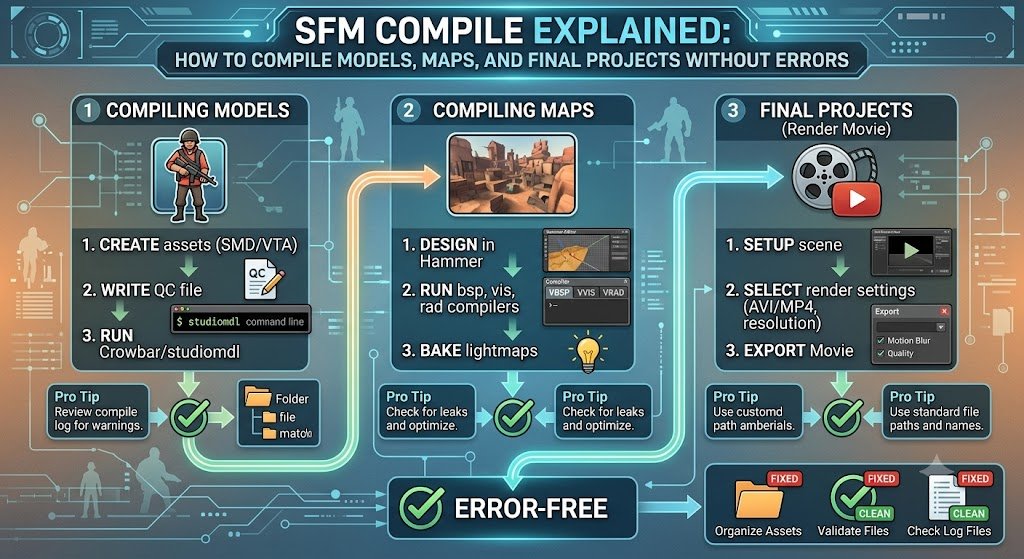
The term SFM compile can be confusing because creators use it to describe several different processes. One person may be trying to turn a Blender model into an SFM-ready asset. Another may be compiling a custom map. Someone else may simply be attempting to export an animation as a finished movie.
Those tasks are related, but they are not identical.
Technically, compiling usually means converting editable source assets into formats the Source engine can load efficiently. Models are converted into .mdl and supporting binary files. Maps are transformed from editable .vmf files into playable .bsp files. Rendering, on the other hand, converts an animated SFM session into images or video.
Understanding that distinction solves half the confusion before troubleshooting even begins.
This guide explains the complete workflow, the tools involved, the errors that stop compilation, and the practical checks that prevent hours of wasted work.
What Does SFM Compile Actually Mean?
An SFM compile is the conversion of source content into a format that Source Filmmaker can use.
Source Filmmaker is Valve’s movie-making application built inside the Source engine. It works with many of the same models, maps, materials, sounds, particles, and animations used by Source games.
Depending on the project, compiling may refer to:
- Converting an exported SMD or DMX model into an MDL
- Processing a QC script through StudioMDL
- Compiling an editable Hammer map into a BSP
- Preparing textures and materials for a custom asset
- Recompiling a model ported from another Source game
- Informally, exporting an SFM animation into a final movie
The first four are genuine asset-compilation operations. The last is more accurately called rendering or movie export.
That terminology matters. Searching for a “compile fix” will not help much when the actual problem is a broken video codec, invalid export resolution, or overloaded render scene.
How the SFM Compile Pipeline Works
A reliable workflow begins with understanding what enters the pipeline and what should come out.
For a custom model, the process generally looks like this:
- Create or edit the object in Blender, Maya, 3ds Max, or another 3D package.
- Prepare the mesh, skeleton, UV map, materials, and animations.
- Export the source files as SMD or DMX.
- Write or generate a QC file.
- Run the QC through StudioMDL, often using Crowbar as a graphical interface.
- Place the generated model files in the correct SFM content directory.
- Place the VMT and VTF material files in matching material folders.
- Test the model in Source Filmmaker or a model viewer.
Valve’s model documentation describes compilation as the stage where source files and a QC script are processed into a binary model that the engine can load.
A successful result normally produces more than a single .mdl file. Depending on the model and compiler branch, the output may include files such as:
.mdl.vvd.dx90.vtx.phy- Animation-related files
- Additional platform or optimization files
Do not copy only the MDL while ignoring the supporting output. A model can appear invisible, fail to load, or behave incorrectly when part of its compiled file set is missing.
SFM Compile Requirements Before You Start
Most failed builds begin before the compiler is opened.
A clean source package should contain the following components.
Model geometry
The reference mesh contains the visible shape of the object. It must use valid geometry, supported weights, sensible transforms, and a structure the exporter can process.
Remove accidental duplicate geometry, unused objects, non-manifold sections where practical, and unsupported modifiers before exporting.
Skeleton and bone weights
Animated characters need a valid armature. Each deforming vertex must be assigned appropriately, and bone names should remain consistent throughout the source files and QC configuration.
Renaming bones after animations have been exported is a common way to create mismatches.
UV layout and material assignments
Compilation does not magically create textures or repair a missing UV map. The mesh needs material assignments that correspond with the names expected by the Source material system.
The compiled model searches for its materials through the path declared in the QC file. A valid model can therefore compile successfully but still appear as a purple-and-black checkerboard because the material path is wrong.
SMD or DMX source files
SMD and DMX are intermediate formats used to carry geometry, skeleton, animation, and related model data into the compiler.
DMX can store richer Source Filmmaker-oriented data in supported workflows, while SMD remains common because of its simplicity and broad tool support. Valve’s documentation notes that DMX replaced older StudioMDL data workflows in several contexts, although compatibility still depends on the engine branch and exporter.
A correctly written QC file
The QC is the build instruction sheet.
It tells the compiler:
- What the final model should be called
- Which source mesh to use
- Where materials are located
- Which animation sequences to include
- Whether the asset is static or animated
- Which collision model to use
- Which surface properties apply
- How bodygroups, skins, attachments, and hitboxes behave
Without a valid QC, the compiler has source ingredients but no dependable recipe.
How to Write a Basic QC for SFM Compile
A simple prop QC might look like this:
$modelname "custom/my_prop.mdl"

$body "body" "my_prop_reference.smd"

$surfaceprop "metal"

$cdmaterials "models/custom/my_prop"

$sequence "idle" "my_prop_reference.smd" fps 30

$collisionmodel "my_prop_physics.smd"
{
    $concave
}
Each line has a specific job.
$modelname sets the output location relative to the game’s models folder.
$body points to the visible reference mesh.
$surfaceprop determines physical surface behavior, such as metal, wood, plastic, or flesh.
$cdmaterials tells the model where to search for its VMT materials.
$sequence defines an animation sequence. Even a static prop commonly needs an idle sequence.
$collisionmodel defines physical collision geometry when collision is required.
Valve’s QC documentation confirms that the QC controls the compilation of model source data and defines the model’s output path, geometry, materials, animation, and other engine behavior.
Keep the first test build minimal. Do not begin with twenty bodygroups, flex controllers, multiple LODs, complex physics, and dozens of animations.
Compile a basic visible model first. Add advanced features after the foundation works.
How to Run an SFM Compile with StudioMDL
StudioMDL is the command-line model compiler used by the Source engine. It takes model source data and turns it into the binary MDL format and related output files.
A manual command resembles:
studiomdl.exe -game "C:\Program Files (x86)\Steam\steamapps\common\SourceFilmmaker\game\usermod" "C:\model_project\my_prop.qc"The exact installation location may differ.
The important pieces are:
- The correct StudioMDL executable
- A valid
-gamepath - The complete path to the QC file
- Permission to read the source files and write the output
Run the command from a terminal or batch file so the log remains visible. If the window closes immediately, you may miss the only useful error message.
A simple batch file can make repeated tests faster:
@echo off

"C:\Program Files (x86)\Steam\steamapps\common\SourceFilmmaker\game\bin\studiomdl.exe" ^
-game "C:\Program Files (x86)\Steam\steamapps\common\SourceFilmmaker\game\usermod" ^
"C:\model_project\my_prop.qc"

pause
The pause command keeps the window open after the attempt.
How to Use Crowbar for an SFM Compile
Crowbar is commonly used as a graphical frontend for Source model operations. It reduces the need to type long command-line paths and makes it easier to select a game configuration, QC file, output branch, and compiler.
A typical Crowbar workflow is:
- Open the Compile tab.
- Choose or configure Source Filmmaker as the target game.
- Select the QC file.
- Confirm that the game and compiler paths are correct.
- Choose the appropriate compile options.
- Start compilation.
- Read the entire log, not just the final line.
- Load the model in SFM and inspect it.
Crowbar is helpful, but it does not repair an invalid source package. It still relies on StudioMDL and the instructions inside the QC.
Treat it as a clearer control panel, not a one-click model converter.
How to Fix the Most Common SFM Compile Errors
The final line often says only that compilation failed. The useful clue is usually several lines earlier.
Read upward until you find the first meaningful error.
Error opening the QC file
Example:
ERROR: Could not open file model.qcLikely causes include:
- Incorrect QC path
- Renamed or moved file
- Unsupported characters in the path
- Missing quotation marks around a path containing spaces
- Wrong working directory
Use a full path and surround it with quotes.
Unable to load SMD or DMX
This usually means the QC references a file that StudioMDL cannot find or read.
Check:
- Exact spelling
- File extension
- Folder location
- Relative paths
- Export completion
- Read permissions
The official QC reference notes that mesh and animation references are commonly written without the .smd extension because StudioMDL searches supported source formats in a defined order.
Too many bones or invalid bone influence
A model may exceed branch-specific skeleton limitations or contain weight assignments the compiler cannot process correctly.
Fix the source rather than deleting random bones.
Ask:
- Is every bone necessary?
- Are control bones being exported as deform bones?
- Does each vertex have a reasonable number of influences?
- Do the reference mesh and animations use the same skeleton?
- Were bone names altered between exports?
Unknown command in QC
The selected compiler may not support that QC command, or the command may contain invalid syntax.
Different Source branches do not support every directive in exactly the same way. Confirm that the QC was written for the SFM-compatible compiler rather than copied blindly from another game.
Also inspect quotation marks and braces. A missing closing brace can make a later valid line appear to be the problem.
Material path is wrong
The model compiles, but it appears with missing textures.
This is generally not a geometry failure. It indicates that SFM cannot resolve the VMT or that the VMT cannot resolve its VTF texture.
Verify the relationship between:
$cdmaterials "models/custom/my_prop"and the actual material location:
game\usermod\materials\models\custom\my_prop\Then inspect the texture path inside the VMT.
Paths should be relative to the materials folder. Do not insert the full Windows drive path into a VMT.
Model compiles but does not appear in SFM
Check these points:
- The output is inside an active SFM search path.
- The model was not written to another game folder.
- All generated files were copied together.
- The asset browser is searching the expected folder.
- The model name does not conflict with an older version.
- SFM has refreshed or restarted since the files were replaced.
Also inspect the compile log for the exact output destination. Never assume the model went where you intended.
The model is tiny, huge, rotated, or underground
That is usually a source-scale or origin problem.
Before export:
- Apply object transforms.
- Confirm unit scale.
- Position the origin logically.
- Check the forward and up axes.
- Compare the asset against a known Source-scale reference.
- Export a simple test object when diagnosing exporter settings.
Do not compensate for a broken scale by adjusting every animation and attachment later. Correct the source and recompile.
SFM Compile for Custom Maps
Map compilation uses a different toolchain.
Hammer saves editable map source as a .vmf file. That source must be processed into a .bsp file before the engine can load it as a finished map. Valve describes VMF as an editable source format rather than an engine-ready map.
A classic Source map compile normally includes three major stages:
- VBSP: Converts brushes and entities into the basic BSP structure
- VVIS: Calculates map visibility
- VRAD: Calculates baked lighting
If VBSP fails, the later stages cannot produce a usable final map.
If VVIS becomes extremely slow, the map may have poor visibility structure, leaks, or inefficient geometry.
If VRAD takes too long, complex lighting, high-detail shadows, excessive lightmaps, or expensive geometry may be responsible.
A map can sometimes be tested with reduced settings during development, but the final version should receive an appropriate full build.
Common map compilation failures
Watch for:
- Leaks into the void
- Invalid solids
- Displacements touching unsupported geometry
- Missing textures
- Bad entity values
- Excessive brush complexity
- Incorrect tool paths
- Output folders that do not exist
- Compile utilities configured for the wrong game
If Hammer reports that the system cannot find the specified file, Valve’s troubleshooting guidance recommends checking earlier errors first because a failed map build may never create the BSP that the next command expects.
The last error may therefore be a consequence, not the root cause.
SFM Compile Versus Rendering a Movie
Many users search for SFM compile when they really need help exporting an animation.
Rendering is the process of calculating the final frames from your lights, cameras, particles, models, materials, motion blur, depth of field, and anti-aliasing settings.
It does not convert an SMD into an MDL or a VMF into a BSP.
For dependable final output, an image sequence is often safer than sending a long project directly into a compressed movie format.
An image-sequence workflow provides several advantages:
- A crash does not necessarily destroy the completed frames.
- Broken frames can be rendered again individually.
- Compression is handled later in a dedicated video editor.
- Color correction becomes easier.
- Audio can be mixed separately.
- Final encoding can use modern delivery formats.
PNG offers lossless frames and transparency support where applicable, but it uses more storage. Other image formats may reduce storage at the cost of flexibility or quality.
Import the completed sequence into an editor, add the final audio, and encode the delivery file there.
How to Improve SFM Rendering Reliability
Before exporting a long sequence, render a small test range.
Check:
- Resolution
- Frame rate
- Motion blur
- Depth of field
- Particle behavior
- Shadow quality
- Texture sharpness
- Camera framing
- Audio synchronization
- Available disk space
Source Filmmaker’s default export workflow has historically centered on 720p unless higher-resolution launch options are configured. Valve’s documentation also warns that loading sessions with export settings above the permitted launch resolution can create stability problems.
That makes a short test essential.
A ten-second sample can reveal an incorrect frame rate, missing material, or broken depth of field before an overnight render is wasted.
A Professional SFM Compile Checklist
Use this checklist before every serious build.
Source files
- Mesh is clean and triangulates predictably.
- Transforms are applied.
- Scale and orientation are verified.
- UVs are present.
- Material slots have sensible names.
- Armature structure is final.
- Vertex weights are checked.
- Reference and animation skeletons match.
QC configuration
$modelnamepoints to the intended folder.$bodyor$modelreferences the correct mesh.$cdmaterialsmatches the real material directory.- At least one valid sequence is defined.
- Physics mesh is simplified and valid.
- Braces and quotation marks are balanced.
- Commands are supported by the selected compiler.
Compilation settings
- The correct StudioMDL branch is selected.
- The
-gamepath points to SFM’s intended content folder. - Paths containing spaces are quoted.
- The compiler has permission to read and write.
- The first error in the log has been resolved.
- All generated output files remain together.
In-app testing
- Model loads without an error placeholder.
- Textures appear correctly.
- Scale and origin are correct.
- Bones animate as expected.
- Flexes work where required.
- Bodygroups and skins switch correctly.
- Attachments align correctly.
- Physics behavior is appropriate.
How to Make the SFM Compile Workflow Faster
Speed comes from repeatability, not from skipping validation.
Create a standard project structure:
project_name/
├── qc/
├── modelsrc/
├── animations/
├── materials/
├── textures_source/
├── scripts/
└── backups/
Keep source assets separate from compiled game files. That prevents accidental overwrites and makes it easier to transfer, archive, or rebuild the project.
Use versioned filenames while developing:
character_v01.blend
character_v02.blend
character_v03.blend
Do not use vague names such as:
final.blend
final2.blend
final_really_final.blend
Automate repeated builds with a batch script. Compile after small milestones rather than waiting until the entire character is finished.
A good sequence is:
- Compile the basic mesh.
- Verify materials.
- Add the skeleton.
- Test one animation.
- Add flexes.
- Add bodygroups.
- Add attachments.
- Add physics and advanced features.
When something breaks, the most recent change becomes the first suspect.
Conclusion
A dependable SFM compile is not created by repeatedly pressing the compile button and hoping the next attempt works. It comes from a controlled pipeline: clean source files, consistent paths, a valid QC, the correct StudioMDL configuration, complete materials, and disciplined log reading.
Start with the smallest working version of the asset. Confirm that it loads. Then add complexity one layer at a time.
For models, focus on SMD or DMX exports, QC instructions, StudioMDL, and material paths. For maps, focus on VMF-to-BSP processing through VBSP, VVIS, and VRAD. For finished animations, stop treating movie export as model compilation and use a tested image-sequence render workflow.
Most importantly, read the first real error in the log. The final line tells you the build failed. The earlier lines usually tell you why.
Frequently Asked Questions
1. What does SFM compile mean?
An SFM compile generally means converting editable Source Filmmaker assets into engine-ready files. For models, this usually means processing SMD or DMX source data and a QC script through StudioMDL. For maps, it means converting a VMF into a BSP. Some creators also use the phrase informally when referring to movie rendering.
2. Why does my model compile but show missing textures?
The model and its materials are separate parts of the asset. A successful model build does not guarantee that SFM can locate the VMT and VTF files. Check the $cdmaterials line in the QC, the folder beneath materials, and the texture paths written inside each VMT.
3. What files are needed to compile an SFM model?
A basic model typically needs a reference mesh exported as SMD or DMX, a QC script, and any animation or collision source files referenced by that QC. Textures should be converted to VTF, while material definitions should be saved as VMT files in the correct Source material directory.
4. Should I use StudioMDL or Crowbar?
StudioMDL performs the actual compilation. Crowbar provides a graphical interface that makes StudioMDL easier to configure and run. Beginners often find Crowbar more convenient, while advanced users may prefer command-line or batch-script workflows for automation and repeatability.
5. Why does my SFM compile fail without a clear explanation?
The useful message is often not the final line. Scroll upward and find the first error involving a missing source file, unsupported QC command, invalid path, bone problem, or malformed mesh. Later messages may simply be consequences of that first failure. Fix one root error at a time, recompile, and review the new log.
